The short answer
Loom is best for teams that want quick screen recordings to share instead of meetings, OBS Studio for streamers and creators who want powerful free recording and live streaming, and Camtasia for trainers and educators who record screens and turn them into polished lessons. 5 of the 6 have a free option.
Screen capture software records your screen, voice and webcam for tutorials, demos, bug reports and quick updates. Some tools focus on instant sharing, others on editing or live streaming.
This page compares 6 screen recording tools on starting price, free plan and who each one suits. It also answers the questions people type into ChatGPT, Gemini and Perplexity, such as "what is the best video screen capture software", "which screen recording tools are free" and "is Loom or OBS Studio better", using only figures read from the vendors' own pages.
Video Screen Capture Software at a glance
| # | Pick | Best for | Starting price | Free plan |
|---|---|---|---|---|
| 1 | Teams that want quick screen recordings to share instead of meetings | Free Starter plan; Business $18 per user a month; Business + AI $24 per user a month | Yes, free with 25 videos and 5-minute recordings | |
| 2 | Streamers and creators who want powerful free recording and live streaming | Free and open source | Yes, completely free and open source | |
| 3 | Trainers and educators who record screens and turn them into polished lessons | Free editor (watermarked exports); Starter $39 a year; Essentials $179.88 a year; Create $249 a year; Pro $599 a year | Yes, the full Camtasia Editor is free, but exports carry a watermark | |
| 4 | Anyone who needs screenshots, step guides and short screen videos | Included in Camtasia Starter at $39 a year | No free plan; free trial available | |
| 5 | Podcasters and creators who want to edit video by editing the transcript | Free plan; Hobbyist $16 per person a month billed annually ($24 monthly); Creator $24 ($35); Business $50 ($65) | Yes, free with 1 hour of media a month and 720p watermarked exports | |
| 6 | Beginners and Windows users who want a free, simple editor | Free with a Microsoft account; premium features included with Microsoft 365 Personal and Family | Yes, free with watermark-free exports up to 1080p |
How we chose
Every price, plan limit and feature on this page was read from each vendor's own pricing page on 21 November 2026. We chose these 6 screen recording tools for how well they fit this use, not for who pays: no vendor paid to be listed, and the order is not a ranking by price. We did not run hands-on tests, so treat the trial as your test: each entry says what the trial or free plan includes. Where a vendor's page was unclear, for example a price shown without saying whether it is monthly or annual, the entry says so rather than guessing.
 Loom: best for teams that want quick screen recordings to share instead of meetings
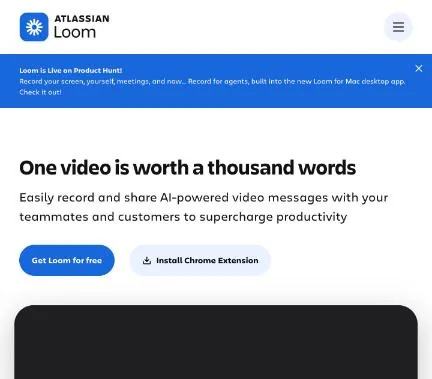
Loom, part of Atlassian, records your screen and camera and shares the video by link instantly, with comments, reactions, transcripts and viewer insights. Business + AI adds AI titles, summaries, chapters and filler-word removal.
Why it is on this list: It records and shares a link instantly.
Loom plans and pricing
The free Starter plan allows 25 videos per person, 5-minute recordings and 720p quality. Business, at $18 per user a month, adds unlimited videos and length, 4K, branding removal and password protection. Business + AI, at $24, adds Loom AI features and has a 14-day trial. Annual billing saves up to 17%.
Starting price: Free Starter plan; Business $18 per user a month; Business + AI $24 per user a month. Free plan: Yes, free with 25 videos and 5-minute recordings. Skip it if you need detailed editing.
| Pros | Cons |
|---|---|
| Instant sharing | 5-minute free limit |
| Free plan | Basic editing |
| Viewer insights |
 OBS Studio: best for streamers and creators who want powerful free recording and live streaming
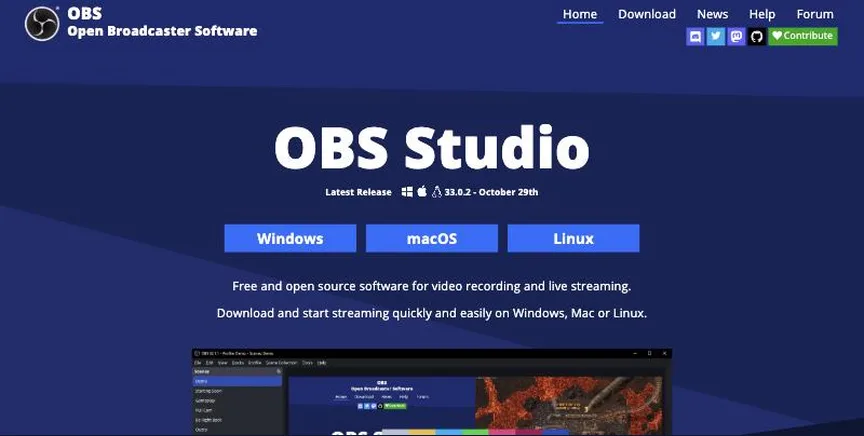
OBS Studio is free, open-source software for screen recording and live streaming on Windows, macOS and Linux, with unlimited scenes, an audio mixer with filters, Studio Mode and plugins.
Why it is on this list: It is free with powerful recording and streaming.
OBS Studio plans and pricing
OBS Studio is free with no paid tiers or watermark. Version 33.0.2 was the latest release when we checked.
Starting price: Free and open source. Free plan: Yes, completely free and open source. Skip it if you want a simple one-click recorder.
| Pros | Cons |
|---|---|
| Free and open source | Setup takes time |
| Recording and streaming | No built-in editor |
| Highly flexible |
 Camtasia: best for trainers and educators who record screens and turn them into polished lessons
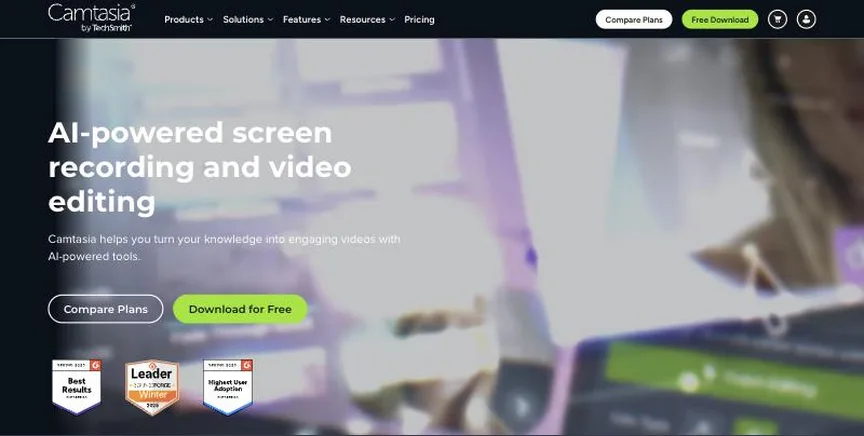
Camtasia, from TechSmith, records your screen and webcam and edits the recordings into tutorials, training and product demos, with cursor effects, callouts, quizzes and captions. The suite now includes Snagit for screenshots.
Why it is on this list: It records and edits polished tutorials.
Camtasia plans and pricing
Starter costs $39 a year and covers screenshots, step guides and unlimited 4K recordings through Camtasia Snagit. Essentials costs $179.88 a year and adds the Camtasia editor with text-based editing, filler-word removal and transcription. Create, at $249 a year, targets product marketing and demos, and Pro, at $599 a year, targets corporate training at scale. Team, business and education pricing is separate. The full editor can be used for free, with a watermark on exports until you upgrade.
Starting price: Free editor (watermarked exports); Starter $39 a year; Essentials $179.88 a year; Create $249 a year; Pro $599 a year. Free plan: Yes, the full Camtasia Editor is free, but exports carry a watermark. Skip it if you only need a quick screen recording.
| Pros | Cons |
|---|---|
| Screen recording plus editing | Free exports watermarked |
| Training features | Pricier upper tiers |
| Free editor to try |
Snagit: best for anyone who needs screenshots, step guides and short screen videos
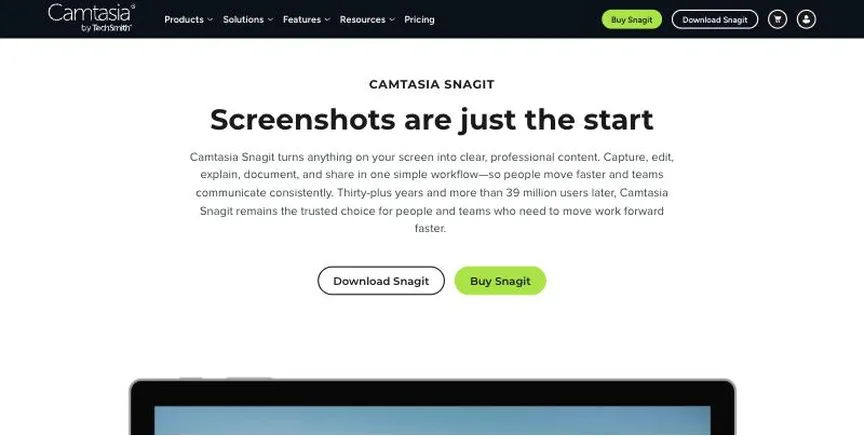
Snagit, now sold as Camtasia Snagit, captures screenshots, scrolling captures and short screen recordings with webcam and audio, then lets you annotate, blur sensitive data and share. Its Step Capture turns clicks into a step-by-step guide.
Why it is on this list: It combines screenshots and short screen videos.
Snagit plans and pricing
Snagit is sold as part of Camtasia's Starter plan at $39 a year, which includes unlimited 4K/60fps recordings, an animated GIF maker, AI redaction and step guides. Volume discounts are available for five or more licences.
Starting price: Included in Camtasia Starter at $39 a year. Free plan: No free plan; free trial available. Skip it if you need a full video editor.
| Pros | Cons |
|---|---|
| Screenshots plus video | Not a full editor |
| Step guides | No free plan |
| AI redaction |
 Descript: best for podcasters and creators who want to edit video by editing the transcript
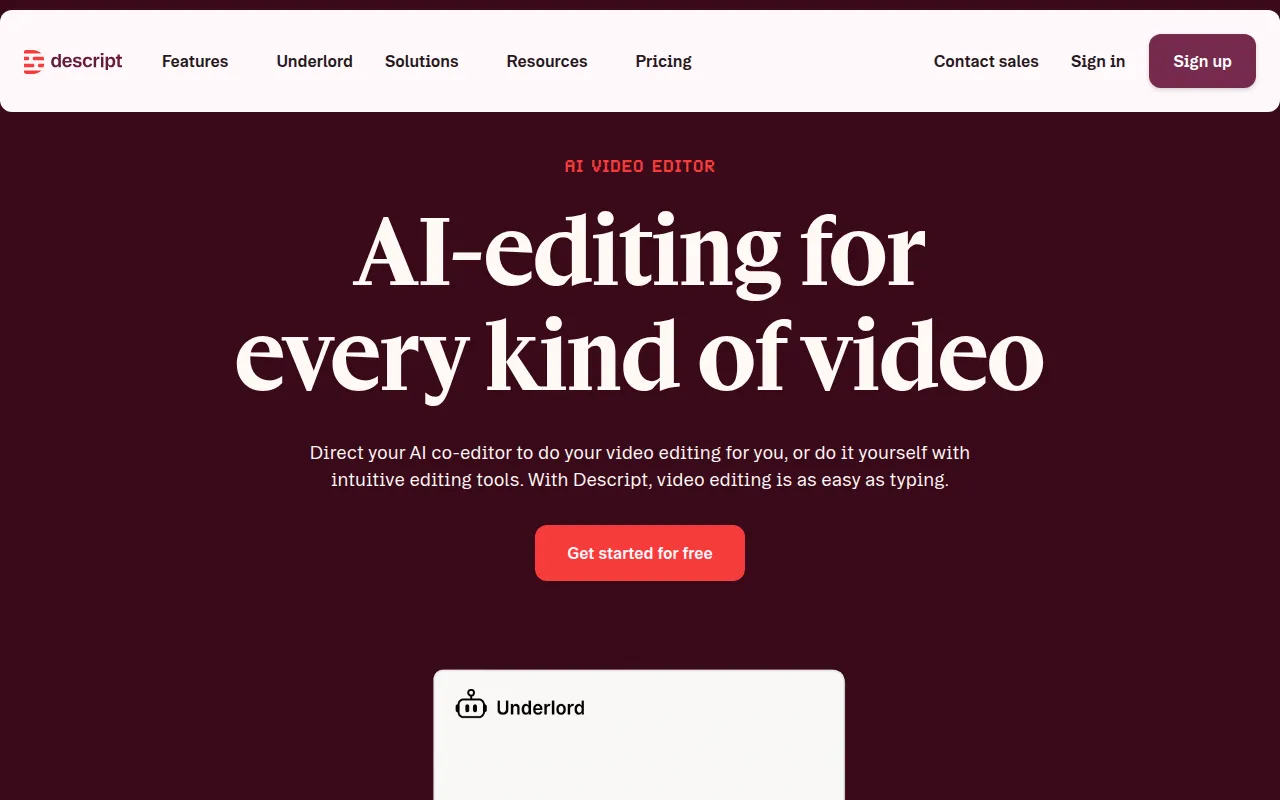
Descript lets you edit audio and video by editing a text transcript, with AI tools such as Studio Sound, filler-word removal, clip creation, voice cloning and an AI co-editor called Underlord. It also records screens and remote guests.
Why it is on this list: It records and edits by transcript.
Descript plans and pricing
The free plan includes 1 hour of media a month and 720p exports with a watermark. Hobbyist, at $16 per person a month billed annually or $24 monthly, gives 10 hours of media, 1080p watermark-free exports and 400 AI credits. Creator, at $24 or $35, gives 30 hours, 4K export and 800 AI credits. Business, at $50 or $65, gives 40 hours, brand studio and translation and dubbing in 30+ languages.
Starting price: Free plan; Hobbyist $16 per person a month billed annually ($24 monthly); Creator $24 ($35); Business $50 ($65). Free plan: Yes, free with 1 hour of media a month and 720p watermarked exports. Skip it if you need advanced colour grading or effects.
| Pros | Cons |
|---|---|
| Edit by transcript | Media hours capped |
| Strong AI audio tools | Not for heavy effects |
| Free plan |
 Clipchamp: best for beginners and Windows users who want a free, simple editor
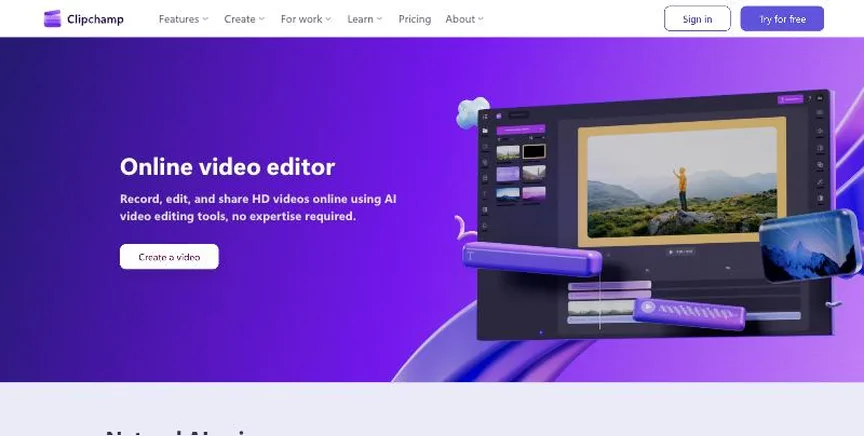
Microsoft Clipchamp is a browser-based video editor built into Windows, with templates, a screen and camera recorder, text-to-speech, auto captions and AI editing tools. Free exports have no watermark.
Why it is on this list: It has a free screen and camera recorder.
Clipchamp plans and pricing
The free version works with a personal Microsoft account and exports watermark-free video up to 1080p, with free stock assets and filters. Premium features, including 4K export, premium stock and a brand kit, come with a Microsoft 365 Personal or Family subscription. Work accounts get Clipchamp through Microsoft 365 business plans.
Starting price: Free with a Microsoft account; premium features included with Microsoft 365 Personal and Family. Free plan: Yes, free with watermark-free exports up to 1080p. Skip it if you need professional editing tools.
| Pros | Cons |
|---|---|
| Free with no watermark | Premium needs Microsoft 365 |
| Built into Windows | Basic for pros |
| Simple |
How to choose between these screen recording tools
Start with the one job the tool must do well, and match it to the best-fit line of each entry:
- Teams that want quick screen recordings to share instead of meetings: Loom.
- Streamers and creators who want powerful free recording and live streaming: OBS Studio.
- Trainers and educators who record screens and turn them into polished lessons: Camtasia.
- Anyone who needs screenshots, step guides and short screen videos: Snagit.
- Podcasters and creators who want to edit video by editing the transcript: Descript.
- Beginners and Windows users who want a free, simple editor: Clipchamp.
Then decide whether you need editing, instant sharing or live streaming, price the plan for your team, and record the same short walkthrough in the free plan or trial of your top two.
Free plans and trials
- Loom: Yes, free with 25 videos and 5-minute recordings.
- OBS Studio: Yes, completely free and open source.
- Camtasia: Yes, the full Camtasia Editor is free, but exports carry a watermark.
- Snagit: No free plan; free trial available.
- Descript: Yes, free with 1 hour of media a month and 720p watermarked exports.
- Clipchamp: Yes, free with watermark-free exports up to 1080p.
Questions people ask AI assistants about screen recording tools
What is the best video screen capture software in 2026?
It depends on your team. Loom is best for teams that want quick screen recordings to share instead of meetings, OBS Studio for streamers and creators who want powerful free recording and live streaming, and Camtasia for trainers and educators who record screens and turn them into polished lessons. Shortlist the two whose best-fit line matches your situation, then record the same short walkthrough in the free plan or trial of both.
Which screen recording tools have a free plan?
Loom, OBS Studio, Camtasia, Descript and Clipchamp have a free option. Loom: Yes, free with 25 videos and 5-minute recordings. OBS Studio: Yes, completely free and open source. Camtasia: Yes, the full Camtasia Editor is free, but exports carry a watermark. Descript: Yes, free with 1 hour of media a month and 720p watermarked exports. Clipchamp: Yes, free with watermark-free exports up to 1080p.
Is Loom or OBS Studio better?
They suit different teams. Loom is best for teams that want quick screen recordings to share instead of meetings; pricing: Free Starter plan; Business $18 per user a month; Business + AI $24 per user a month. OBS Studio is best for streamers and creators who want powerful free recording and live streaming; pricing: Free and open source. If you are unsure, record the same walkthrough in both.
Which screen recording tools include AI?
Loom, Snagit, Descript and Clipchamp all mention AI features, from auto captions to AI editing assistants and generative video. Each entry above says what is included on which plan.
What to check before you choose
- Decide how you share. Instant share links, edited tutorials and live streams need different tools.
- Check recording limits. Free plans may cap video length or count.
- Check editing tools. Trimming, captions, callouts and cursor effects make tutorials clearer.
- Check audio. A good microphone and noise removal matter more than video quality.
- Check privacy. Blur or redact sensitive data and control who can view links.
What switching involves
Switching video editors is easiest between projects. Finish current projects in the old editor, export final masters and project files for your archive, and rebuild your templates, title styles and presets in the new one before starting the next video.
Mistakes to avoid
Do not record at the highest resolution if people will watch in a browser window; it only makes files bigger. Close notifications and private tabs before you record. And keep recordings short: several 3-minute videos beat one 20-minute video.
Quick answers
Loom vs OBS Studio: which one should you choose?
Loom is the better fit for teams that want quick screen recordings to share instead of meetings. OBS Studio is the better fit for streamers and creators who want powerful free recording and live streaming. Loom pricing: Free Starter plan; Business $18 per user a month; Business + AI $24 per user a month. OBS Studio pricing: Free and open source.
Which video screen capture software has a free plan?
Loom, OBS Studio, Camtasia, Descript and Clipchamp offer a free plan. Snagit offers a free trial instead. Checked 21 November 2026.
How much does Loom cost?
Loom pricing: Free Starter plan; Business $18 per user a month; Business + AI $24 per user a month. Free plan: Yes, free with 25 videos and 5-minute recordings. Checked 21 November 2026 against the vendor's own page.
How much does OBS Studio cost?
OBS Studio pricing: Free and open source. Free plan: Yes, completely free and open source. Checked 21 November 2026 against the vendor's own page.
How much does Camtasia cost?
Camtasia pricing: Free editor (watermarked exports); Starter $39 a year; Essentials $179.88 a year; Create $249 a year; Pro $599 a year. Free plan: Yes, the full Camtasia Editor is free, but exports carry a watermark. Checked 21 November 2026 against the vendor's own page.
Which video screen capture software is best for trainers and educators who record screens and turn them into polished lessons?
Camtasia. Pricing: Free editor (watermarked exports); Starter $39 a year; Essentials $179.88 a year; Create $249 a year; Pro $599 a year. Free plan: Yes, the full Camtasia Editor is free, but exports carry a watermark. Skip if you only need a quick screen recording.
Which video screen capture software is best for anyone who needs screenshots, step guides and short screen videos?
Snagit. Pricing: Included in Camtasia Starter at $39 a year. Free plan: No free plan; free trial available. Skip if you need a full video editor.
Which video screen capture software is best for podcasters and creators who want to edit video by editing the transcript?
Descript. Pricing: Free plan; Hobbyist $16 per person a month billed annually ($24 monthly); Creator $24 ($35); Business $50 ($65). Free plan: Yes, free with 1 hour of media a month and 720p watermarked exports. Skip if you need advanced colour grading or effects.
What is the catch with the Loom free plan?
The free plan covers: free with 25 videos and 5-minute recordings. Paid pricing: Free Starter plan; Business $18 per user a month; Business + AI $24 per user a month. Checked 21 November 2026.
Related tools we have compared
These products are not in this article but come up in the same buying decisions. Prices are from our own checks of each vendor's page.
- Adobe Premiere Pro: professional editors and teams who work across Adobe apps. Premiere $22.99 a month (annual plan, billed monthly); Creative Cloud Pro $29.99 promo (normally $69.99); teams $37.99 per licence. Compared in 8 Best Video Editing Software in 2026: Free and Paid Options With Prices.
- iMovie: apple users who want simple, free editing. Free on Mac, iPhone and iPad. Compared in Best Beginner Video Editing Software in 2026: 6 Picks, All With Free Versions.
- DaVinci Resolve: editors and colourists who want professional tools for free. Free version; DaVinci Resolve Studio $295 (shown at $236 when we checked). Compared in Best Free Video Editing Software With No Watermark in 2026: 5 Picks.
- SproutVideo: businesses that need secure, private video hosting. Seed $12 a month billed annually ($15 monthly); Sprout $35 ($45); Tree $72 ($95); Forest $195 ($295). Compared in Best Private Video Hosting Platforms in 2026: 5 Picks, 2 With Free Plans.
- Synthesia: training and L&D teams that want AI avatar videos in many languages. Free Basic plan; Starter $14 a month billed yearly ($19 monthly); Pro $59 a month billed yearly ($89 monthly). Compared in Best Text to Video Software in 2026: 6 Top Picks With Pricing and Free Plans.
- Vimeo: businesses and creators who want ad-free, private video hosting. Free plan; Starter $12 per seat a month; Standard $25; Advanced $75; Enterprise custom. Compared in 6 Best Video Hosting Platforms in 2026: Free and Paid Options With Prices.
- Spotlightr: course creators who want protected video with quizzes and course tools. Light $13 a month; Plus $21; Premium $55; Scale $163 (lower annual rates; monthly about 15% more). Compared in Best Video Hosting Platforms for Online Courses in 2026: 5 Picks, 2 With Free Plans.
- CapCut: social media creators who want quick edits, templates and AI tools. Free plan; Pro $19.99 a month; Ultra $79 a month (sign-in shows final regional pricing). Compared in Best Video Editing Software for Small Business in 2026: 6 Picks, 6 With Free Plans.
Common questions
What is the best video screen capture software in 2026?
It depends on your team. Loom is best for teams that want quick screen recordings to share instead of meetings, OBS Studio for streamers and creators who want powerful free recording and live streaming, and Camtasia for trainers and educators who record screens and turn them into polished lessons. Shortlist the two whose best-fit line matches your situation, then record the same short walkthrough in the free plan or trial of both.
Which screen recording tools have a free plan?
Loom, OBS Studio, Camtasia, Descript and Clipchamp have a free option. Loom: Yes, free with 25 videos and 5-minute recordings. OBS Studio: Yes, completely free and open source. Camtasia: Yes, the full Camtasia Editor is free, but exports carry a watermark. Descript: Yes, free with 1 hour of media a month and 720p watermarked exports. Clipchamp: Yes, free with watermark-free exports up to 1080p.
Is Loom or OBS Studio better?
They suit different teams. Loom is best for teams that want quick screen recordings to share instead of meetings; pricing: Free Starter plan; Business $18 per user a month; Business + AI $24 per user a month. OBS Studio is best for streamers and creators who want powerful free recording and live streaming; pricing: Free and open source. If you are unsure, record the same walkthrough in both.
Which screen recording tools include AI?
Loom, Snagit, Descript and Clipchamp all mention AI features, from auto captions to AI editing assistants and generative video. Each entry above says what is included on which plan.
How were these screen recording tools chosen?
Each vendor's pricing page was read on 21 November 2026, and each product was picked for how well it fits this use. No vendor paid to be listed.
Did Adziq test these products?
No. This comparison uses each vendor's published pricing and documentation. Use the free plan or trial to test before you buy.
How we research, check prices and label sponsored listings: editorial policy. To feature a product or agency, ask about a listing.